The table
Sort by one column or several, filter with conditions or a quick search, arrange, freeze and hide columns, save the whole arrangement as a view, and open more than one sheet.
Documentation pages
Each row is one asset and each column one of its serialized fields, read from the assets on disk. The table stays current by itself: create, change or delete an asset anywhere in Unity and its row follows. Nothing you do to arrange the table, sorting, filtering, moving or hiding columns, changes your assets.
Sort
Click a column’s heading to sort by it, again to reverse, and a third time to stop sorting by it. Shift-click another heading to sort by it within the first, as in a spreadsheet; the line above the table says what the rows are sorted by. A heading’s right-click menu has Sort ascending, Sort descending, Then sort by, and Clear sort.
Numbers sort as numbers, so 10 comes after 9. Text sorts alphabetically, ignoring case.
Filter
+ Filter builds a condition: choose the column under Where, how it compares under Is, and a
Value, then Add. Each condition becomes a chip under the toolbar, such as Kind is Boss or
Health ≥ 100.


- Click a chip to change it, and its × to remove it.
- Match all ▾ shows rows that meet every chip; switch it to Match any ▾ for rows that meet one or more.
- Clear removes them all.
- Ctrl+F goes to the filter from anywhere in the window.
The comparisons are =, !=, <, <=, >, >=, contains, notcontains, isempty and notempty.
Text comparisons ignore case. A heading’s right-click menu has Filter › Is empty and
Filter › Is not empty for the common checks.
The filter as text
Edit as text shows the same filter written out, which is quicker to type and can say more than chips:
kind = Elite and health >= 100 or notes contains "boss"and binds tighter than or, as in most languages. Quote a value with spaces in it, and double a quote
inside one. A filter that mixes and with or stays as text, and says so, because chips cannot show it.
A column can be named by its letter in the heading: $D > 50 filters the column lettered D. Saved views store
the field’s name instead, so a saved filter still works after the columns move.
Quick searches find one asset without writing a condition: name:troll, path:Enemies/Bosses and
guid:8f3 look for that text in the asset’s name, path or GUID.
Columns
Drag a heading to move its column and drag a heading’s edge to change its width. A heading’s right-click menu does the rest:
- Hide column takes it out of the table. To bring it back, choose it under Hidden columns in the Columns section and click Show column.
- Move left and Move right move it one place.
- Freeze this column keeps it in view while you scroll sideways, joining the frozen columns on the left; Freeze through this column freezes every column up to it. Unfreeze this column and Unfreeze all columns let them go. The row number and the asset’s name always stay in view.
- Copy column copies its values, and Copy property path the field’s serialized path.
- Go to declaration opens the script that declares the field, at the line, and Find uses in scripts lists every script that uses it.
The headings are lettered A, B, C like a spreadsheet’s, the asset’s name being A.
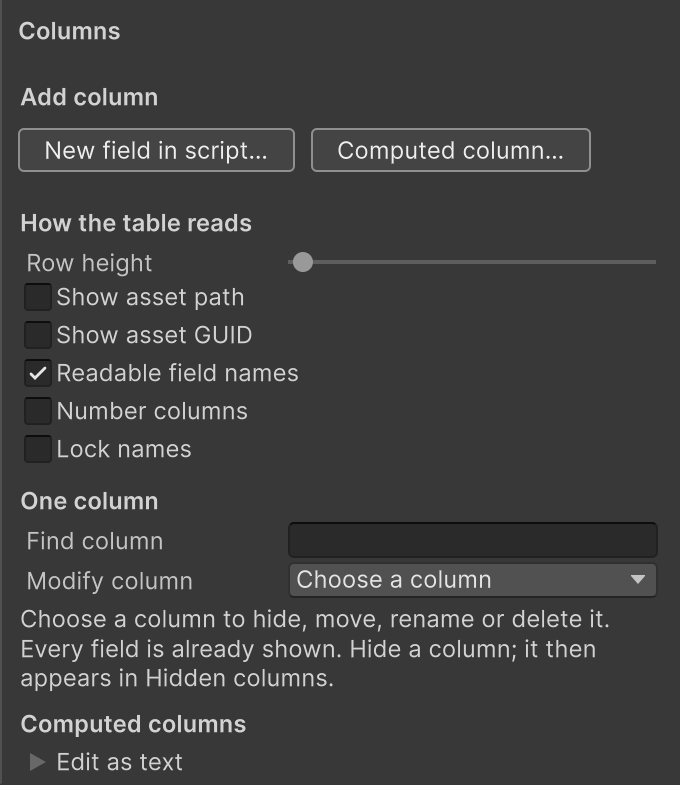
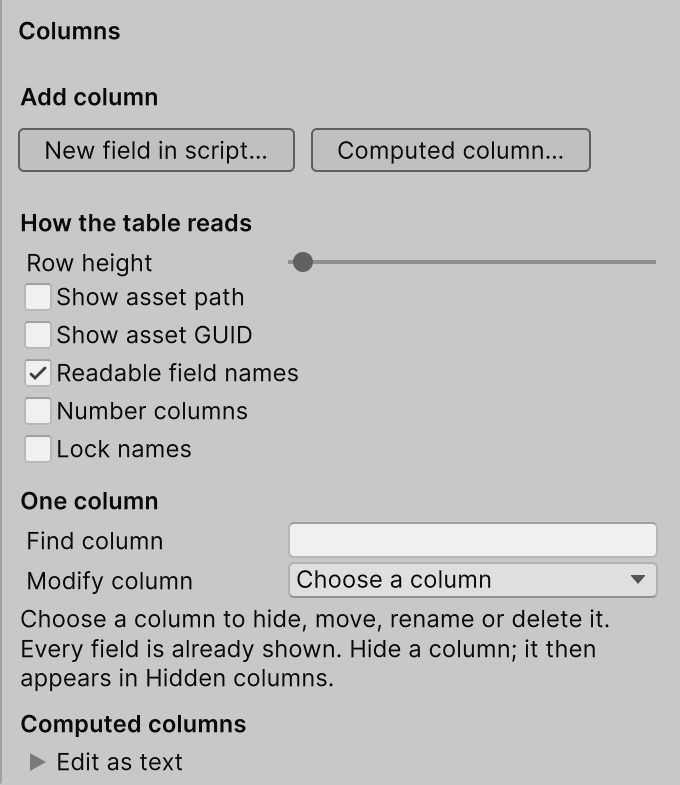
The Columns section sets how the table reads:
- Row height makes rows taller, for bigger thumbnails.
- Show asset path and Show asset GUID add those columns beside the name.
- Readable field names shows
Max HealthformaxHealth; untick it to see the names the script uses. - Number columns counts the headings 1, 2, 3 instead of A, B, C.
- Lock names refuses renaming assets from this sheet, against an accidental rename.
Adding and renaming fields, which change your scripts, are on Columns that change your scripts.
Computed columns
A computed column is worked out from other columns, such as damage per second from damage and speed. It sorts and filters like any number, and since there is no field behind it, it is never written: it cannot be edited or pasted into, and exports and snapshots leave it out.
Click Computed column… in the Columns section. Name the column, then type its formula after the =, using the fields’ names:
dps = damage * speed
value = price / max(weight, 0.1)
gap = abs(health - 100)
The formula is checked as you type, with a suggested fix for a name that is not a column, and the result on
the first row shows under it: = 117.6 for Goblin. Formulas use + - * / with brackets, numbers, and
min, max, abs and round (round(value, 2) keeps two decimals). A row whose value cannot be worked
out, such as a division by zero, shows why in its cell. Edit as text shows every formula one per line.
Computed columns are part of the table’s view, so a saved view brings them with it.
Saved views
A view is the whole arrangement of a table: its type, its folders, its columns and their widths, its sort,
its filter, and its rules. View › Save as… writes it to a .dataview.json file in your
project, which you can commit, so the whole team opens the same table. View › Open lists the project’s
views; View › Save updates the one you opened.
A view holds nothing personal: not your selection, not your scroll position, not which sections you had open. If a view names a field the script no longer has, it says which and offers the renamed field when Unity recorded the rename.
More than one sheet
The + button at the right of the toolbar opens another Asset Tables window, a sheet, with its own type, folders and selection. Tools › Athena › Asset Tables reuses the sheet you used last; the lock button beside + pins a sheet, so it is never reused for something else.