Recipes
Change many values by a rule, such as every Elite's health up ten percent, preview the result with its figures, and save the steps as a file to run again next balance pass.
Documentation pages
A recipe is a list of steps, such as “add 10 to health” or “multiply speed by 0.9”, run over the assets you choose. It stages its changes like any edit, so you see every value it would write before anything is written, and you can save it as a small text file to run again on the next balance pass.
Build a recipe
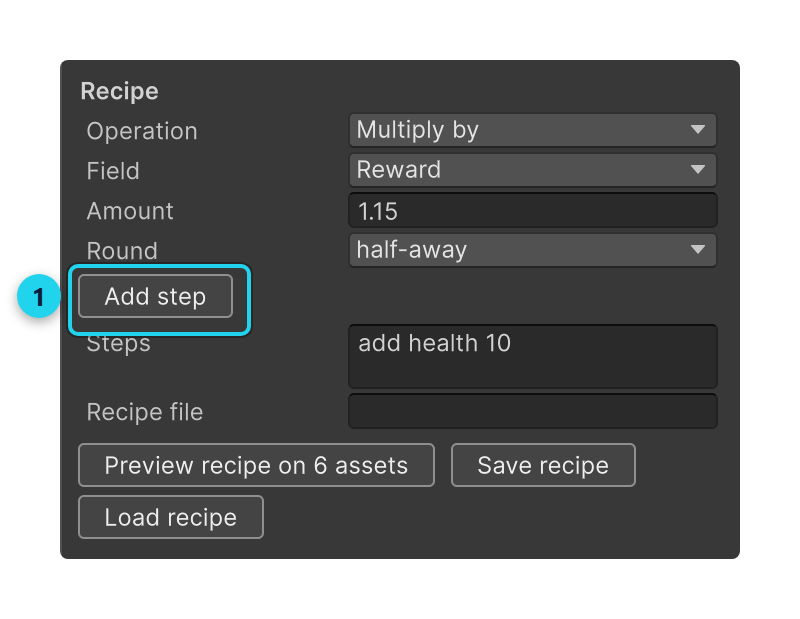
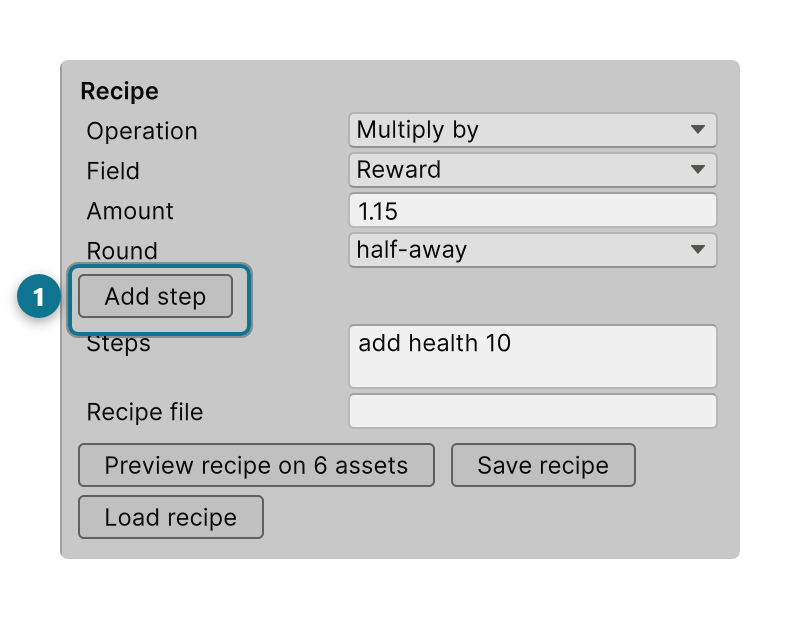
Open the Edit tab. Under Recipe, choose an Operation and a Field, fill in the boxes the operation asks for (an Amount to add, a Minimum and Maximum to keep between), and click Add step. Set to on a choice column offers its choices. Each step becomes a line in Steps, and you can add as many as you need.
| Operation | What it does | Works on |
|---|---|---|
| Set to | Sets the value | Any field |
| Clear | Empties it: 0, blank text, no reference | Any field |
| Add, Subtract | Adds or subtracts a number | Numbers |
| Multiply by, Divide by | Multiplies or divides | Numbers |
| Keep between | Raises anything under the first number and lowers anything over the second | Numbers |
| Round | Rounds to a number of decimal places | Decimals |
| Put text before, Put text after | Adds text at the start or the end | Text |
| Replace text | Replaces every match of some text | Text |
| Replace (pattern) | Replaces every match of a regular expression | Text |
| Copy from field | Copies another column’s value into this one | A field that can hold the value |
Steps run in order, each on the result of the one before.
Choose what it runs on
A recipe runs on the rows you have selected, or, with none selected, on every row the filter shows. The button says which: Preview recipe on 3 assets.
To run a recipe on every Elite enemy, filter the table to kind = Elite and leave nothing selected. See
The table.
Preview it
Click Preview recipe. The recipe’s changes are staged in the table, each cell showing its old value and its new one (a change too wide for its column shows the new value, with the whole change on hover), and the panel sums up each number column it changed: Min, Average (with how far it moved) and Max after the recipe, and the largest single move.
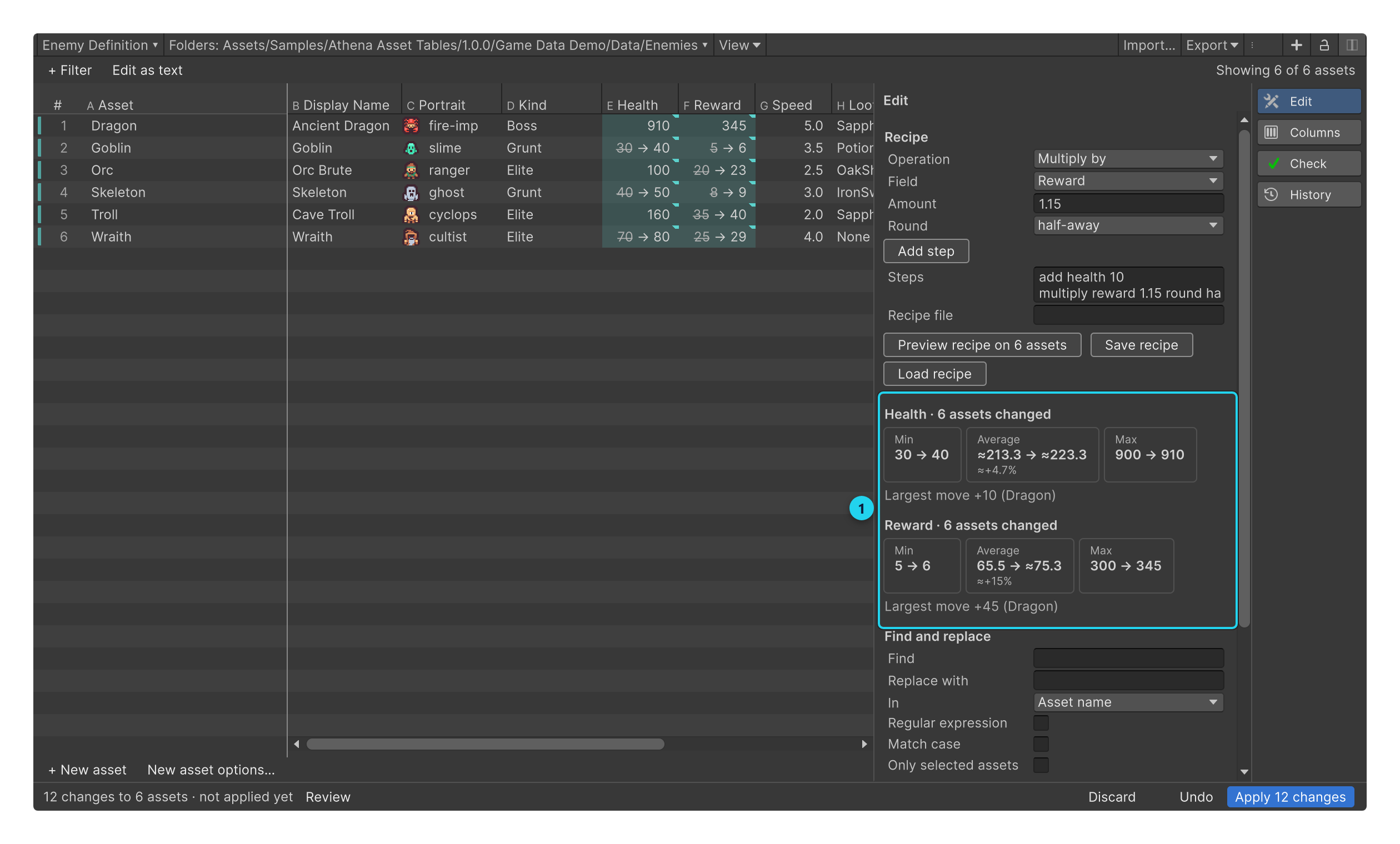
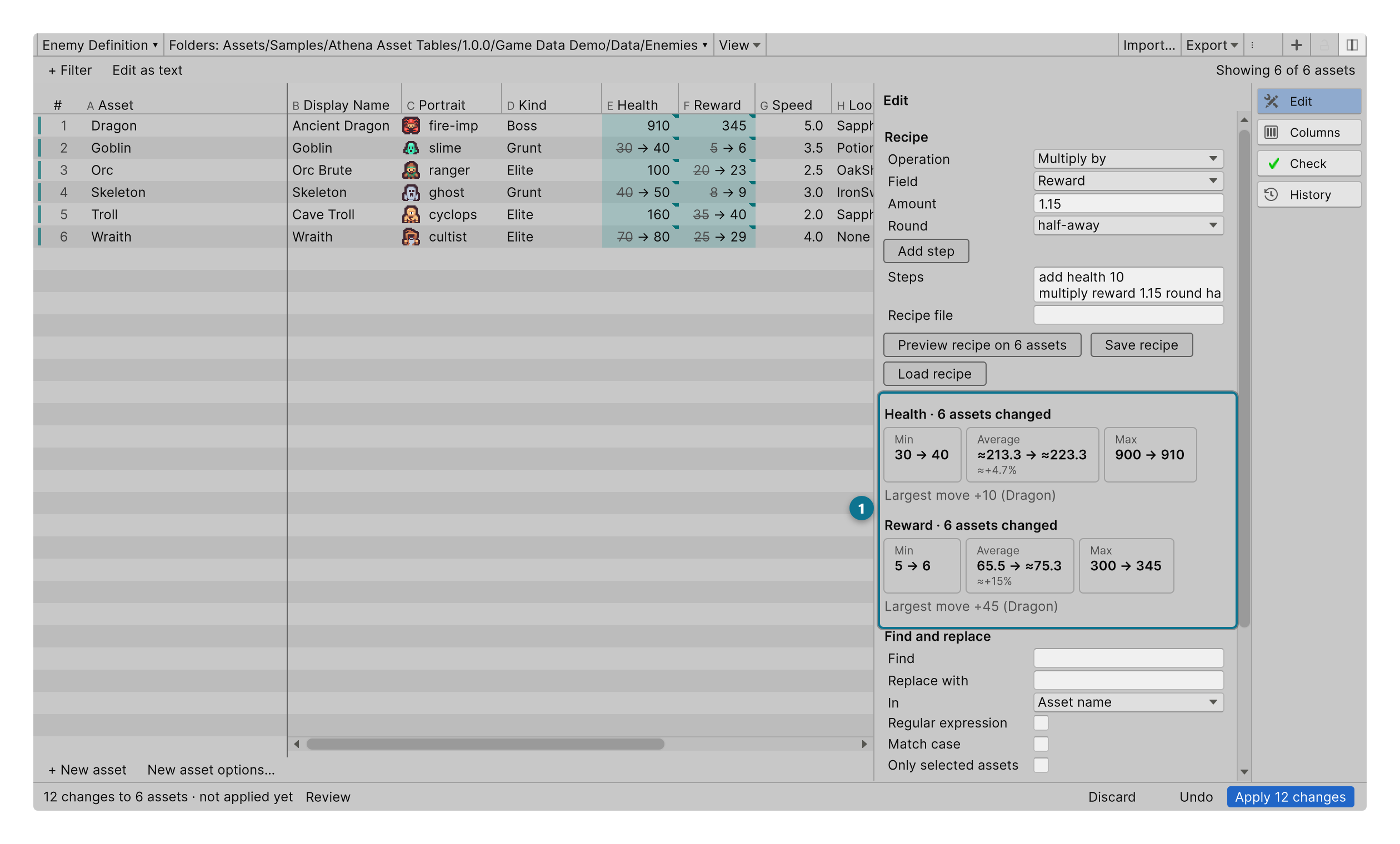
Nothing is written yet. Change a step and preview again, and the new preview replaces the old one. When it looks right, press Apply. The whole recipe is one Apply, and one Edit › Undo takes it back.
A recipe works from the saved values, so it will not stage over a cell you have already edited by hand. It names the cell and asks you to apply or discard that edit first.
If any step cannot run on any asset, such as a number that would not fit its field, the preview stages nothing and lists each problem with its asset.
Whole numbers and rounding
Arithmetic on a whole-number field must end in a whole number. Multiplying a health of 45 by 1.15 gives 51.75, so Athena Asset Tables asks how to round it, and the Round choice beside the step says:
| Round | 51.75 becomes | -51.75 becomes |
|---|---|---|
half-away (the usual rounding) |
52 | -52 |
half-even (banker’s rounding) |
52 | -52 |
floor (always down) |
51 | -52 |
ceiling (always up) |
52 | -51 |
toward-zero (drop the fraction) |
51 | -51 |
half-away and half-even differ only at an exact half: 2.5 becomes 3 and 2 respectively.
A result too large for its field, such as 300 in a byte, is refused rather than wrapped around.
Recipes as text
Steps is the recipe itself, one step per line, and you can type it directly:
# Elite pass: tougher, richer, a little slower
add health 10
add reward 5
multiply speed 0.9
multiply reward 1.15 round half-away
clamp health 1 999
suffix displayName " (Elite)"| Step | Written as |
|---|---|
| Set to | set <field> <value> |
| Clear | clear <field> |
| Add, Subtract, Multiply by, Divide by | add <field> <number>, with round <mode> after it on a whole-number field |
| Keep between | clamp <field> <lowest> <highest> |
| Round | round <field> <decimals> <mode> |
| Put text before, after | prefix <field> "<text>", suffix <field> "<text>" |
| Replace text | replace <field> "<find>" "<replacement>" |
| Replace (pattern) | regex <field> "<pattern>" "<replacement>"; $1 puts back the first group |
| Copy from field | copy <field> from <other field> |
A field is named as the script spells it (displayName, not Display Name). Quote text with spaces in it. A
line starting with # is a comment. A mistake is shown under the box as you type, with the line and a
suggested fix where one is near, such as rewrd isn't a column. Did you mean reward?
Save and share a recipe
Type a path in Recipe file, such as Assets/Balance/elite-pass.datarecipe.txt, and click
Save recipe. Load recipe reads one back into Steps. A recipe file is plain text, so it diffs
cleanly in version control, and anyone on the team can run it.
A saved recipe and a saved view can also run without the window, from a build server or your own editor tools: see Automation.
Find and replace
Find and replace, under the recipe on the Edit tab, is a quicker tool for one change of text:
- Type the text in Find and its replacement in Replace with.
- Choose the column under In: any text column, or Asset name to rename assets.
- Tick Regular expression to find a pattern, Match case to tell
Orcfromorc, and Only selected assets to search only the selected rows. - Click Replace in all assets (or Replace in selected assets).
Every replacement is staged for you to check, and Apply writes them. A search that matches nothing says so and stages nothing.