Prefabs, materials and import settings
Edit MonoBehaviour components inside prefabs, materials and their shader properties, Unity's own asset types, and the import settings of textures, sounds, models and videos, with the same staging, Apply and Undo.
Documentation pages
ScriptableObjects are where most game data lives, but not all of it. Athena Asset Tables edits a few other kinds of asset the same way: changes wait until you apply them, the recovery journal covers them, and Undo takes them back. Choose any of them from the type picker; see Choosing what the table shows.
Components in prefabs
Choose a MonoBehaviour type, such as EnemySpawner or Pickup, and each component of that type in the
prefabs under your folders is a row, including components on child objects. Its serialized fields are the
columns, as for a ScriptableObject.


Athena Asset Tables opens each prefab in Unity’s isolated prefab editing scene, never in your open scene, and Apply saves only the prefabs it changed. A prefab locked by version control, such as one not checked out in Perforce, shows read-only until you check it out.
Athena Asset Tables edits the components a prefab already has. It does not add components to prefabs, edit objects in scenes, or create new prefabs.
Materials
Choose Material, and each material is a row. The columns are its shader’s properties, headed as the
material Inspector heads them (Albedo for _MainTex), in the order the shader declares them:
- colours and numbers edit as they do anywhere else in the table;
- a number the shader shows as a checkbox reads as one;
- a number the shader shows as a list of choices reads as the choice;
- a texture is a reference, edited with Unity’s object picker.


Materials on different shaders can share a table: each row fills the columns its shader has, and the others stay empty.
Unity’s own asset types
The type picker also lists Unity’s own asset types whose data is the asset itself: physics materials, render textures, terrain layers, animation clips, avatar masks, lighting settings and more. Each field reads as the Inspector shows it. A setting that Unity holds in a form the table cannot write safely reads but does not edit.
Import settings
A texture, sound, model or video is made by importing a file, so its values, such as a texture’s width,
come from the import. Editing them would be undone by the next reimport. Athena Asset Tables edits what controls the
import instead: the import settings Unity keeps in the file’s .meta.
Choose Texture 2D, Audio Clip, Model or Video Clip. The columns are the settings from Unity’s import Inspector, named as it names them: Max Size, Compression, Generate Mipmaps and Read/Write for a texture, Load Type and Compression Format for a sound, Scale Factor and Mesh Compression for a model, and so on.
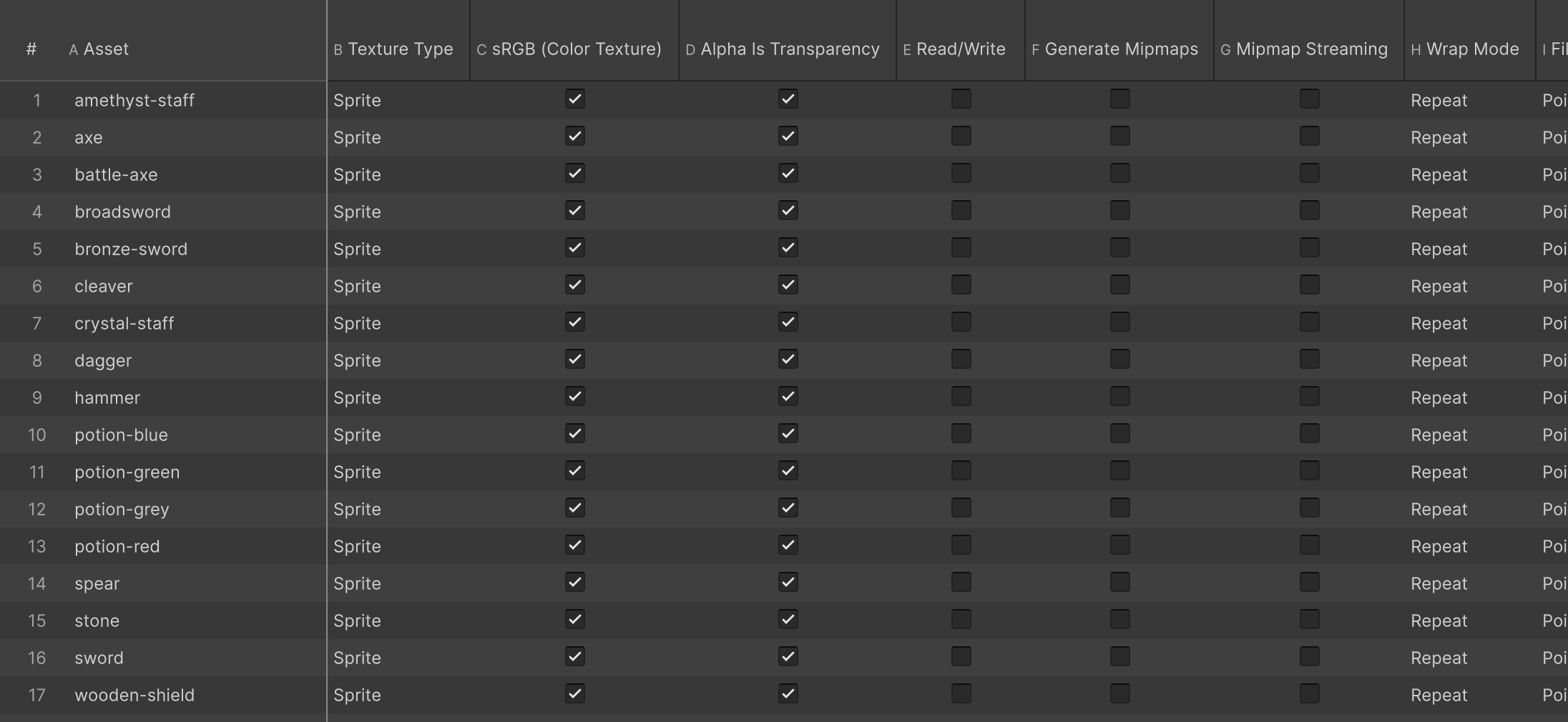
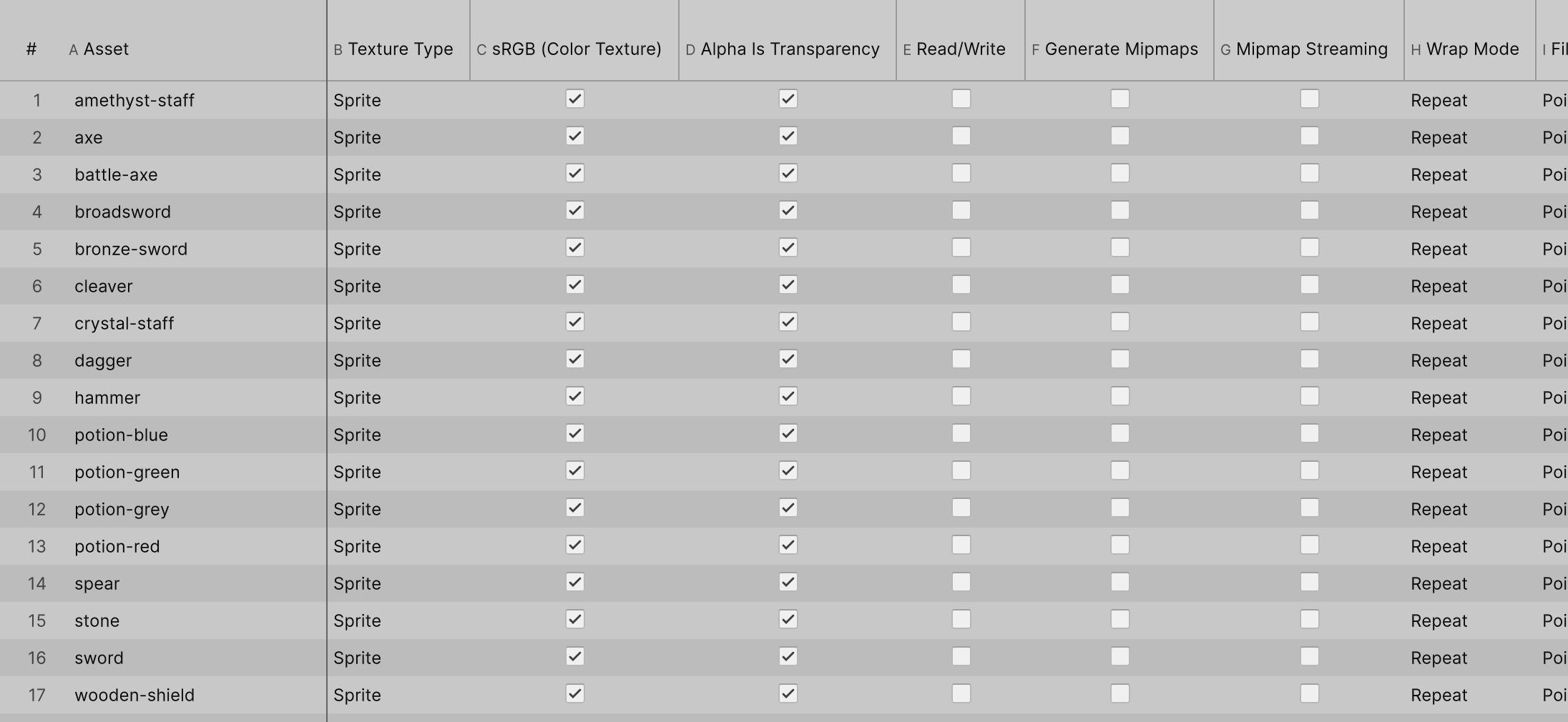
Settings that differ by platform sit under one band per platform: Standalone, Android, iOS and WebGL. A platform’s values take effect only when its Override is on, as in Unity’s Inspector, so turn that on in the same Apply.
Apply writes each file’s import settings and reimports it, so a large Apply on textures takes as long as reimporting them would. History reverts it like any other Apply.
This is the quickest way to answer questions like “which textures are still uncompressed on Android?”: filter the table, select the rows, and set the column once.
Sub-assets
Some assets live inside another asset’s file, such as the clips inside a model or the objects a script
adds to an asset with AssetDatabase.AddObjectToAsset. They are rows like any other and edit the same way.
Their name is part of the file they live in, so they cannot be renamed, duplicated or deleted from the table.
Addressables
When Unity’s Addressables package is installed, an AssetReference field is a column: the cell shows the
asset it points at, and you write it by the asset’s GUID. Athena Asset Tables reads Addressables through reflection, so
it adds no package dependency to your project, and works the same with Addressables removed.
The lookup class can also name each asset’s Addressables address.