New, duplicate, delete and rename
Make new assets in bulk with numbered names, duplicate and delete them, and rename one or many from a template, all staged and undone as one step.
Documentation pages
Rows are assets, so adding a row makes an asset and deleting one deletes its file. Like every other change, these wait in the table until you press Apply, and the pending bar’s Undo and Discard take them back until then. After Apply, Revert this change on the History tab takes them back: it removes the assets an Apply created, and brings back the ones it deleted with the same GUIDs, so every reference to them points at them again.
New assets
Click + New asset under the last row. A new row appears, marked as new, with the type’s default values, and you can fill in its cells before it exists. Apply creates the asset in the table’s first folder.
To make several at once, or choose their names and folder, click New asset options…:
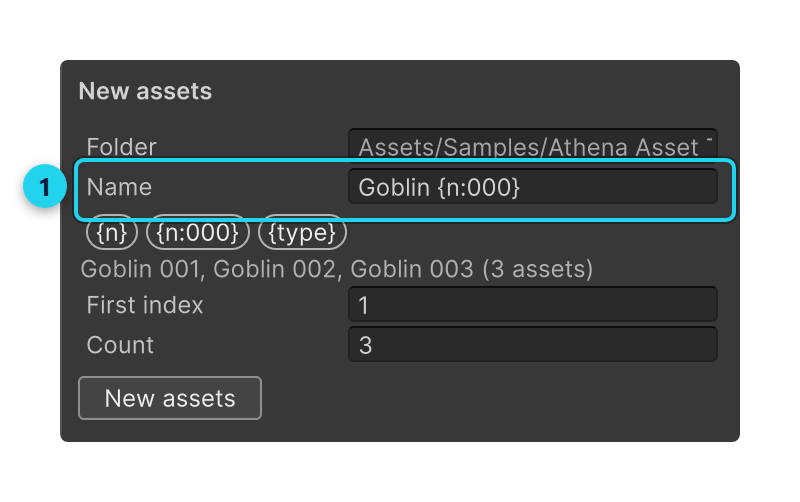
- Folder is where they go; empty means the table’s first folder.
- Name is what to call them, with tokens for what changes from one to the next. Click a token to add it. The names it will make are shown before anything is staged.
- First index is the number
{n}starts from, and Count is how many to make.
Click New assets. Each click stages more, carrying the numbering on, and the pending bar’s Undo takes back one click at a time.
| Token | Becomes |
|---|---|
{n} |
The number: 1, 2, 3 |
{n:000} |
The number padded to three digits: 001, 002 |
{type} |
The type’s name: Enemy Definition |
{name} |
The asset’s current name (renaming only) |
{field} |
Any column’s value, such as {kind} (renaming only) |
Goblin {n:000} with a count of three makes Goblin 001, Goblin 002 and Goblin 003.
To add one asset beside another, right-click a cell in its row and choose Insert asset. It is staged in that row’s folder and named after it, such as Goblin 1.
Rows pasted from a spreadsheet whose names match no asset are staged as new assets too; see Copy and paste.
Duplicate and delete
Select rows by their numbers, and the bar under the table offers Duplicate and Delete for them. The same commands are on a row’s right-click menu.
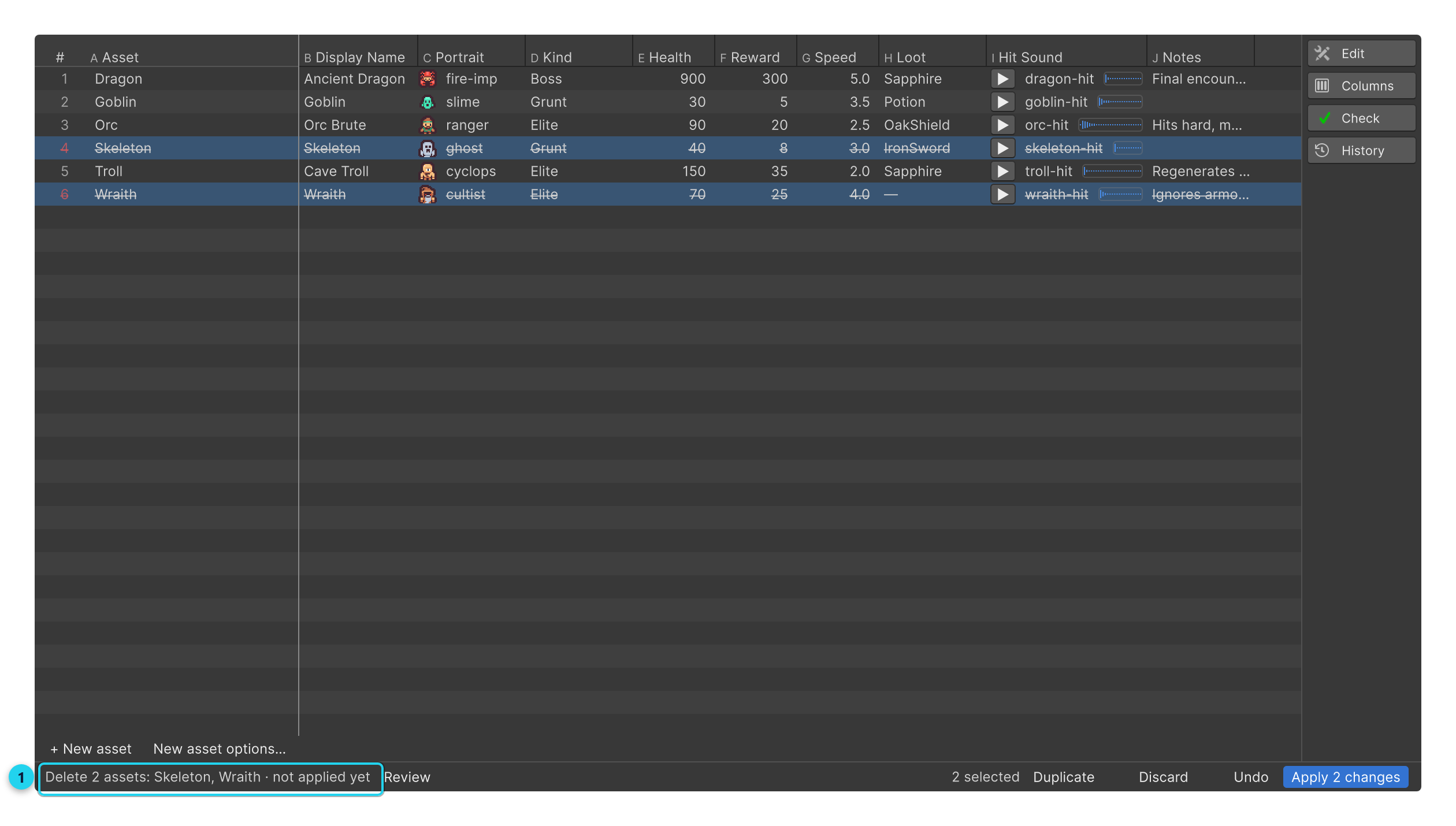
- A duplicate is staged in its source’s folder, with its values, named
Goblin copy(thenGoblin copy 1). - A deleted row is struck through until Apply. The pending bar’s Undo or Discard brings it back.
Up to 500 assets can be created, duplicated or deleted in one go.
Before you delete, select the row and click Where used on the Check tab: it lists every asset that points at it, so nothing is left pointing at a missing asset by surprise. Find unused lists the rows nothing in the project points at, which are usually the safe ones to delete.
Rename an asset
Double-click a name in the Asset column, or select it and press F2, then type the new name
and press Enter. The cell shows the old name and the new one until Apply renames the file. A
name copied from another cell pastes as a rename too, and a pasted name already in use becomes
Goblin Copy 1 rather than being refused.
A typed name is refused, with the reason, when it is empty, already used in that folder, or not one every
platform can hold as a file name, such as Boss? or a name starting with ..
Renaming never breaks a reference: references are by the asset’s identity, not its name.
Rename many from a template
On the Edit tab, under Rename from a template:
- Select the rows to rename, in the order you want them numbered.
- Type the new name in Rename to, with any of the tokens above:
{kind} {name}turns Goblin into Grunt Goblin, andEnemy {n:00}numbers them. - Set Number from if
{n}should start somewhere other than 1. - Click Rename selected.
The renames are checked together, so two rows can never be given one name, and they are staged all or none. Find and replace renames by finding text in names instead; see Recipes.
Lock names
Tick Lock names in the Columns tab to refuse renaming from this sheet, against an accidental rename while you edit the cells beside the names.
What cannot be created or deleted here
Some rows are part of something else, and their tooltip says so:
- A sub-asset, which lives inside another asset’s file, can be edited but not renamed, duplicated or deleted from the table.
- A prefab’s components, a material’s shader properties and a file’s import settings are edited in place. + New asset is not offered for them, since there is nothing new to make.