Code and automation
Name, size and lock columns from your scripts, generate a C# class of constants naming your assets, and run recipes and data checks from a build server or your own editor tools.
Documentation pages
Most of Athena Asset Tables happens in its window, but a few things belong in your code and your build: attributes that shape the table, a class that names your assets for scripts, and the same recipes and checks run without anyone at the keyboard.
Attributes on your fields
Two attributes let a script say how its fields appear in every table, so nobody has to set them up by hand:
using StackBlender.DataWorkbench;
using UnityEngine;

public class ItemDefinition : ScriptableObject
{
    [AthenaColumn(Label = "Item ID", Width = 160, ReadOnly = true)]
    [AthenaRule("unique")]
    public string itemId;

    [AthenaRule("range 0 *")]
    [Tooltip("Gold paid when the player sells it.")]
    public int price;
}[AthenaColumn]gives a column its heading (Label), its first width in points (Width), or makes it read-only (ReadOnly = true). A read-only column still reads, exports, snapshots and is checked by rules; only a change to it is refused.[AthenaRule]puts a rule on the field.- Unity’s own
[Range]and[Min]count as rules, and[Tooltip]becomes the column’s help.
The attributes live in a small assembly, StackBlender.DataWorkbench.Attributes, with no engine
references and no behaviour, so it is the one part of Athena Asset Tables that can reach a build, and it runs nothing.
Scripts in your project see it automatically; an assembly with its own .asmdef needs it added under
Assembly Definition References.
From a column to the code
A heading’s right-click menu has Go to declaration, which opens the script that declares the field at its line, and Find uses in scripts, which lists every script that uses it. Changing the fields themselves is on Columns that change your scripts.
A lookup class for your code
Code that loads an asset by a string path breaks silently when someone renames the file. A lookup class names your assets as constants instead, so a rename is a compile error you can’t miss:
var goblin = AssetDatabase.LoadAssetAtPath<EnemyDefinition>(EnemyDefinitionLookup.Paths.Goblin);
var handle = Addressables.LoadAssetAsync<EnemyDefinition>(EnemyDefinitionLookup.Addresses.Goblin);
Choose Generate C# lookup class… from the toolbar’s ⋮ menu, then click Preview lookup class to
see the file it would write: a class named after the type, such as EnemyDefinitionLookup, holding
Paths, Guids and, when Addressables is installed, Addresses, with one constant per asset in the table.
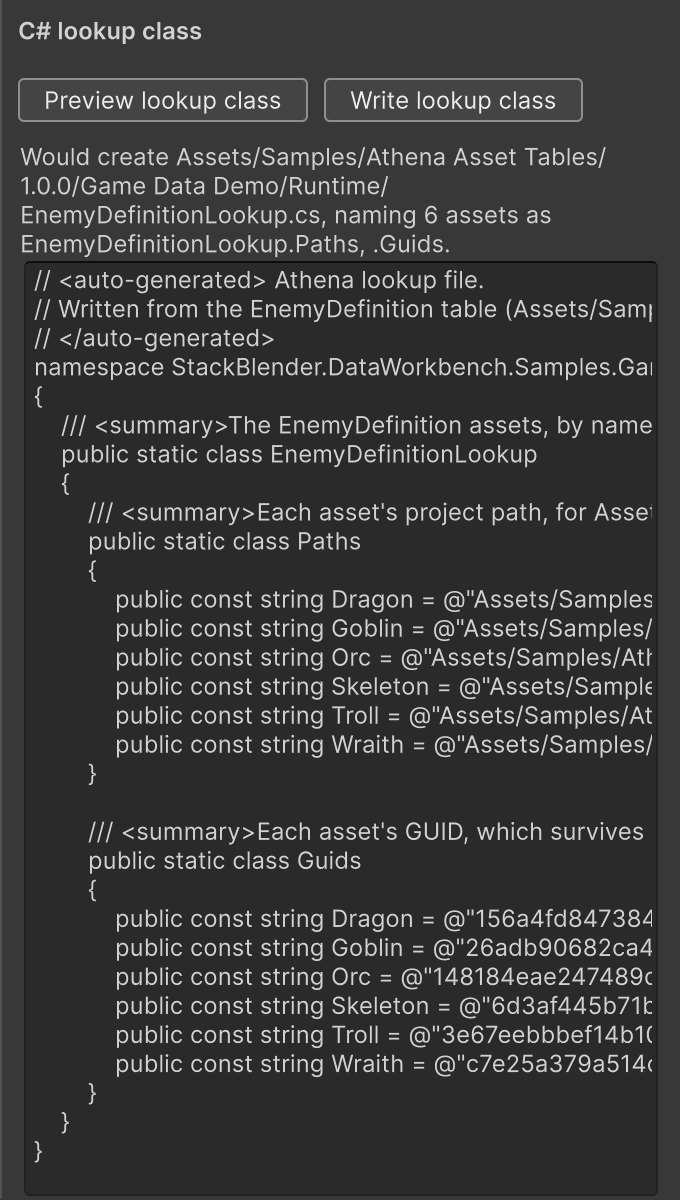
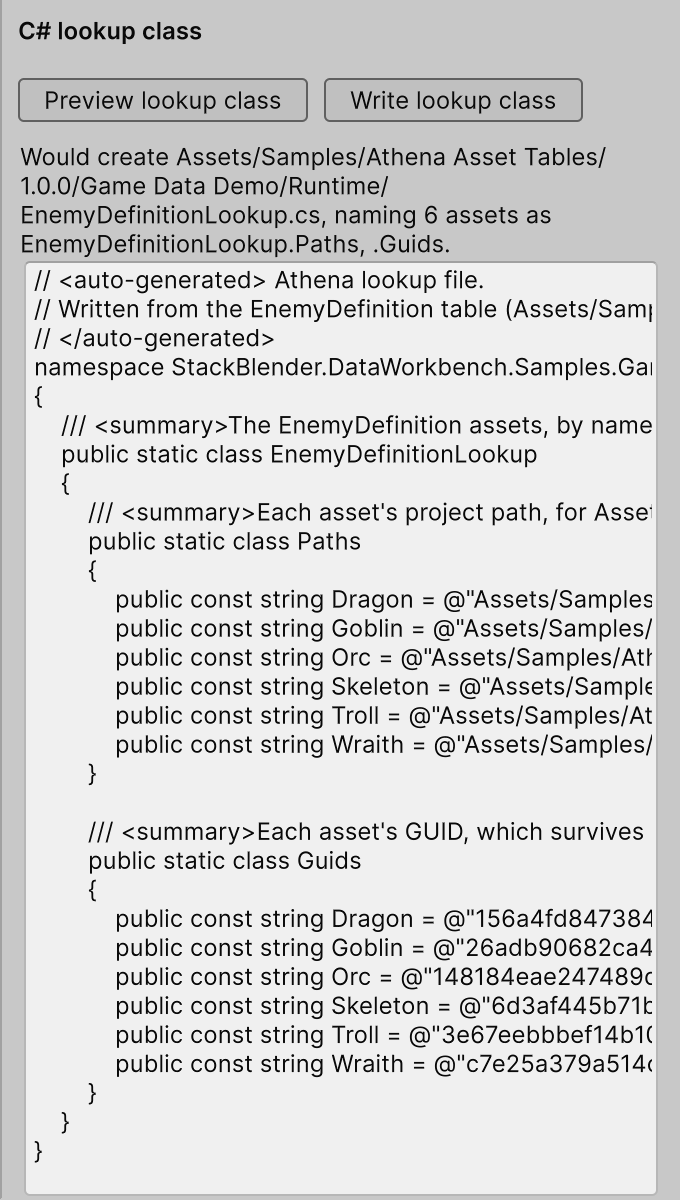
Names are made into C# names (Goblin King becomes GoblinKing, 2 Handed becomes _2Handed), and the
preview lists any name it had to change or tell apart. Click Write lookup class to write it beside the
type’s script. It is written like any script change Athena Asset Tables makes: if Unity cannot compile it, it is put back
or removed. A file Athena Asset Tables did not write is never replaced.
Write it again after you add or rename assets. It is plain constants, so it compiles in any assembly and needs nothing from Athena Asset Tables to run.
Recipes from the command line
A saved view and a saved recipe can be previewed without the window, for a build server to report what a recipe would change:
Unity -batchmode -quit -projectPath <project> \
  -executeMethod StackBlender.DataWorkbench.Editor.Unity.DataWorkbenchAutomation.PreviewSavedRecipeFromCommandLine \
  -dataWorkbenchView Assets/Data/Elites.dataview.json \
  -dataWorkbenchRecipe Assets/Balance/elite-pass.datarecipe.txt \
  -dataWorkbenchReport report.json
It runs the recipe on the rows the view’s filter shows, checks the view’s rules and the fields’ own, writes
every change it would make to report.json with each asset’s value before and after, and exits with 0
when the preview is valid and 2 when it is not. It writes nothing to your assets.
Recipes from your own tools
An editor script of your own can preview or apply a saved recipe through the same path the window uses:
using StackBlender.DataWorkbench.Editor.Unity;

var report = DataWorkbenchAutomation.PreviewSavedRecipe(
    "Assets/Data/Elites.dataview.json", "Assets/Balance/elite-pass.datarecipe.txt");

var applied = DataWorkbenchAutomation.ApplySavedRecipe(
    "Assets/Data/Elites.dataview.json", "Assets/Balance/elite-pass.datarecipe.txt");
Debug.Log(applied.message);
ApplySavedRecipe previews first and applies only a valid preview that changes something, through the
window’s own Apply: stale checks, the recovery journal, one Undo step, and an entry in History. It never
throws for bad input; check applied and message on the report it returns.
Data checks in CI
The build check, every saved view’s rules, every [AthenaRule]
and every reference to a deleted asset, also runs from the command line, with its own report and exit
codes. See Check in CI.