Play Mode
See every value your game changed in a ScriptableObject while it ran, and put the old values back or keep the new ones.
Documentation pages
A ScriptableObject your game writes to while it runs keeps the new value when you stop playing. Unity does not say so, and the change ends up in your next commit: an enemy’s health left at 0 by a test fight, a shop’s prices doubled by a cheat key. Athena Asset Tables notices.
What the game changed
When you press Play, each open table notes its values. When you stop, it compares, and if the game changed anything, a band above the table says what:
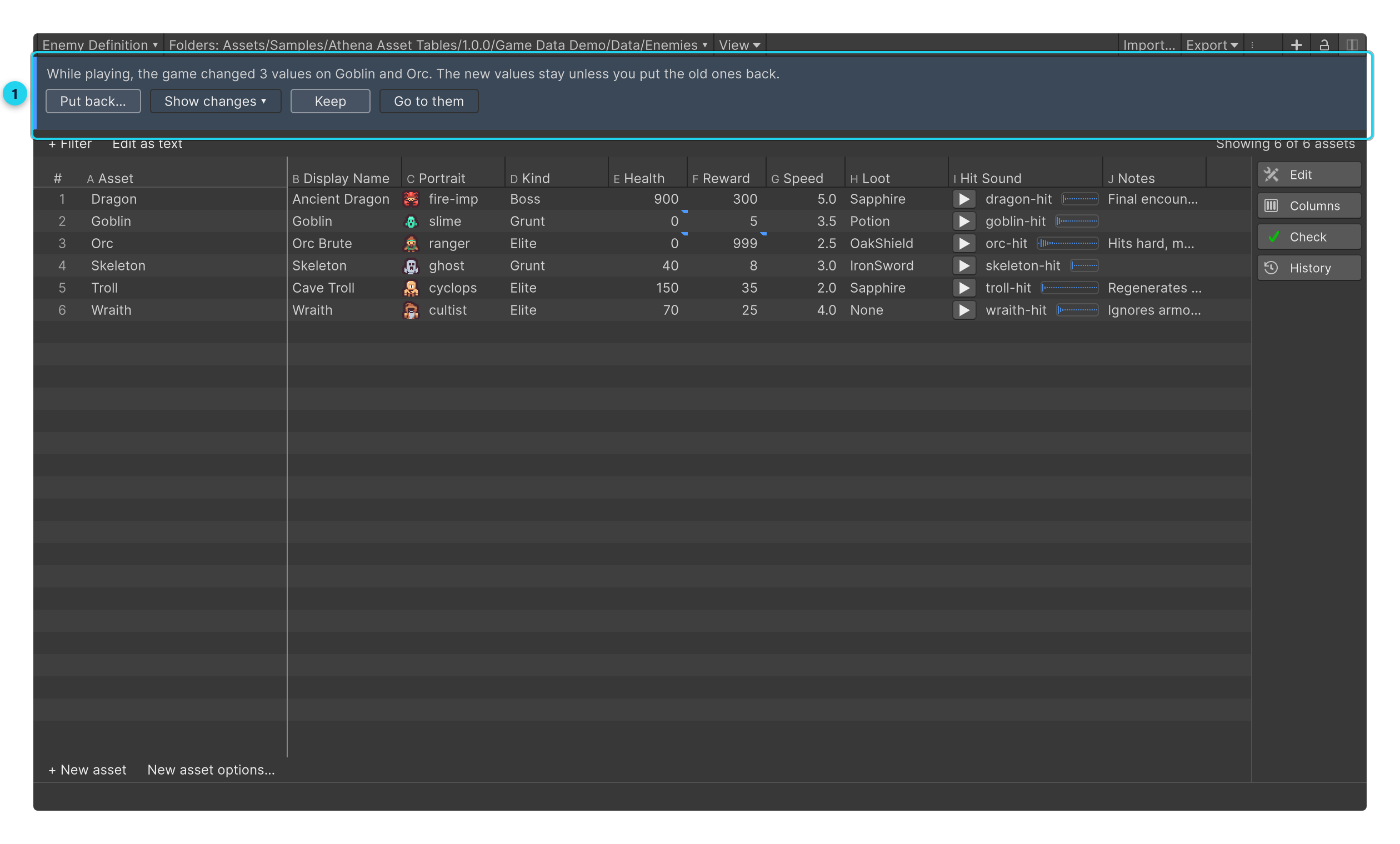
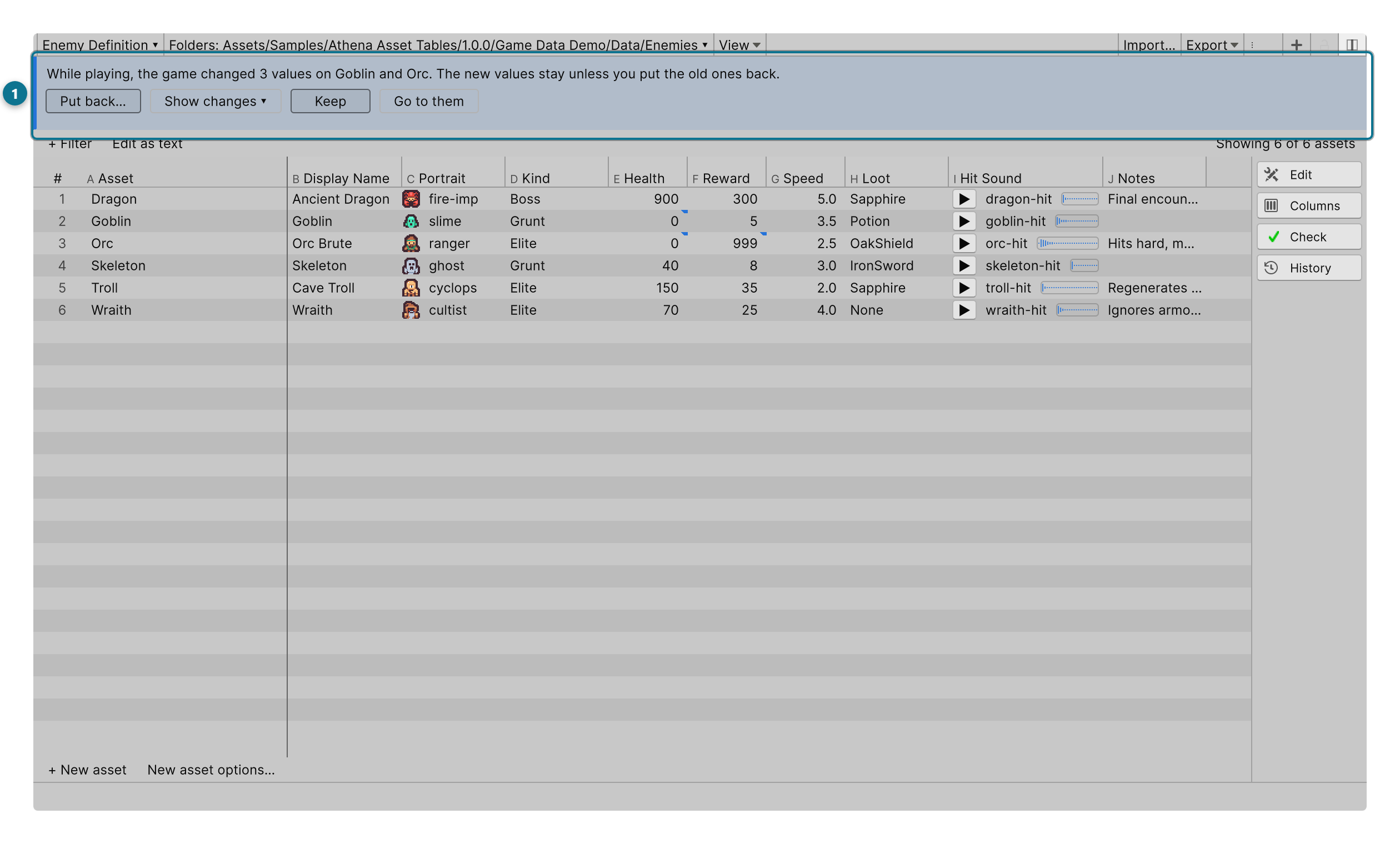
While playing, the game changed 3 values on Goblin and Orc. The new values stay unless you put the old ones back. The changed cells are marked with what they were before, and Show changes ▾ lists each one.
- Put back… stages the values from before Play as pending changes. Review them and press Apply, as for any change.
- Go to them scrolls the table to the changed assets and selects them (with one asset, it names it: Go to Goblin).
- Keep keeps what the game wrote and closes the list. The assets are marked to be saved by the next File › Save Project, so the new values are on disk too, not only in memory.
Only values in the open table’s type and folders are watched, so open a table on the data your game writes to before you press Play.
No writes while playing
Athena Asset Tables writes nothing while the game is running. You can read, sort, filter and copy as usual, but Apply, imports, recipes and asset changes wait until you stop, and the window says why.
Turn it off
Edit › Preferences › Athena › Asset Tables › List what the game changed is on by default. Untick it to stop noting values when Play starts.