Importing a spreadsheet
Bring CSV, TSV or JSON rows into your assets, match each row to its asset by a key column or by GUID, map columns to fields, and preview every change before it is written.
Documentation pages
An import changes your assets from rows in a file. It runs in three steps, 1 Source, 2 Map and 3 Preview, and like every change in Athena Asset Tables it writes nothing until you apply it.
Open the table of the type the rows describe first (see Choosing what the table shows), then click Import… on the toolbar.
1. Source: where the rows come from
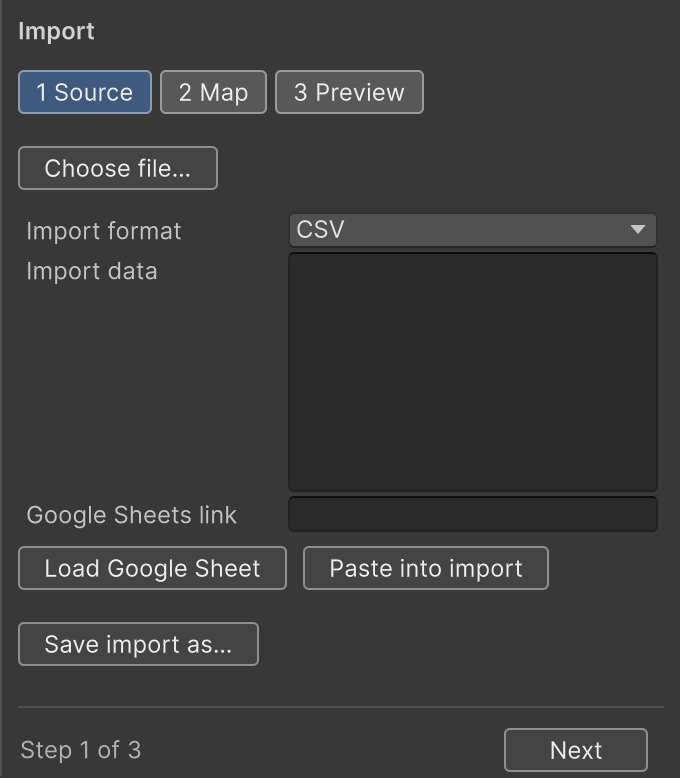
- Choose file… opens a
.csv,.tsv,.jsonor.txtfile of up to 50 MB. You can also drag a file onto the window, from the Project window or from outside Unity. - Paste into import takes rows you copied from a spreadsheet.
- Google Sheets link with Load Google Sheet reads a shared sheet; see Importing from Google Sheets.
Import format is chosen from the file: CSV, CSV with semicolons (Excel’s choice in many European locales), TSV, or flat JSON, an array of objects with one value per key. Change it if Athena Asset Tables guessed wrong. The first row of a CSV or TSV is its header: every column needs a name, and no two the same.
Once the rows are in, Athena Asset Tables moves to the next step and suggests a mapping.
2. Map: which row is which asset, and which column is which field
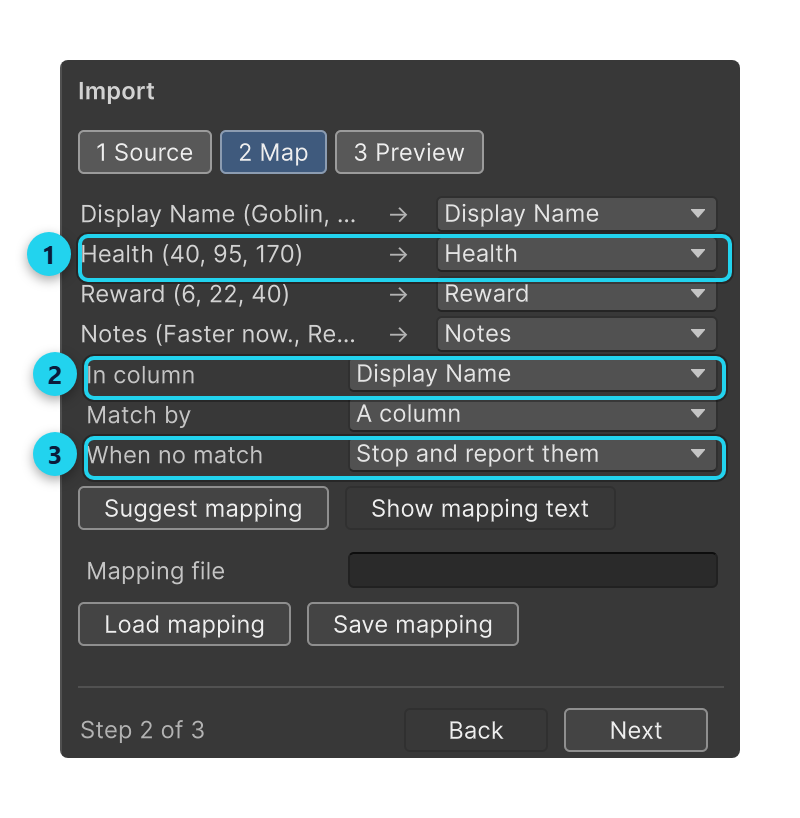
- Each column of the file, with a few of its values, and the field it writes to, or Ignore.
- In column is the column that says which asset a row is for, and Match by, under it, says how. A column matches its value against a field the assets already have, such as an ID or a display name. GUID matches the asset’s GUID, which an export from Athena Asset Tables writes for you.
- When no match is what happens to a row that matches no asset: Stop and report them, Skip them, or Create new assets.
The suggested mapping pairs a column with a field when their letters and digits match, ignoring case and
spaces: a Max Health column goes to maxHealth. A column called guid or Asset GUID is used to match by
GUID. Check every line: a column the suggestion could not place is set to Ignore, and an ignored
column is never written.
Matching by a column, or by GUID
Match by a column when your rows come from a spreadsheet someone keeps by hand. Every asset must have a different value in that field, and each value may appear only once in the file; Athena Asset Tables refuses the import and names the rows when they do not. The value must match exactly, capitals included.
Match by GUID when the rows came out of Athena Asset Tables: an export always ends with a GUID column, so a spreadsheet
you exported, changed and saved comes back to exactly the assets it came from, even if some were renamed.
The mapping as text
Show mapping text shows the mapping as lines you can read, edit, and keep in version control:
"Display Name" -> key displayName
Health -> health
Reward -> reward
Notes -> notes blank=clear
@unmatched skip
Save mapping writes it to a .dataimport.txt file and Load mapping reads one back. The text form
also holds what the controls do not show:
blank=keep(the default) leaves a field alone when its cell is empty,blank=clearsets it to its default, andblank=errorrefuses the row.@culture de-DEreads decimals the way that culture writes them, so1,5means one and a half.@percent fractionreads15%as0.15. Without it, a percentage is refused rather than guessed.@formulas unescapedrops the leading'that spreadsheet-safe exports put before text that starts with=,+,-or@.
3. Preview: what would change
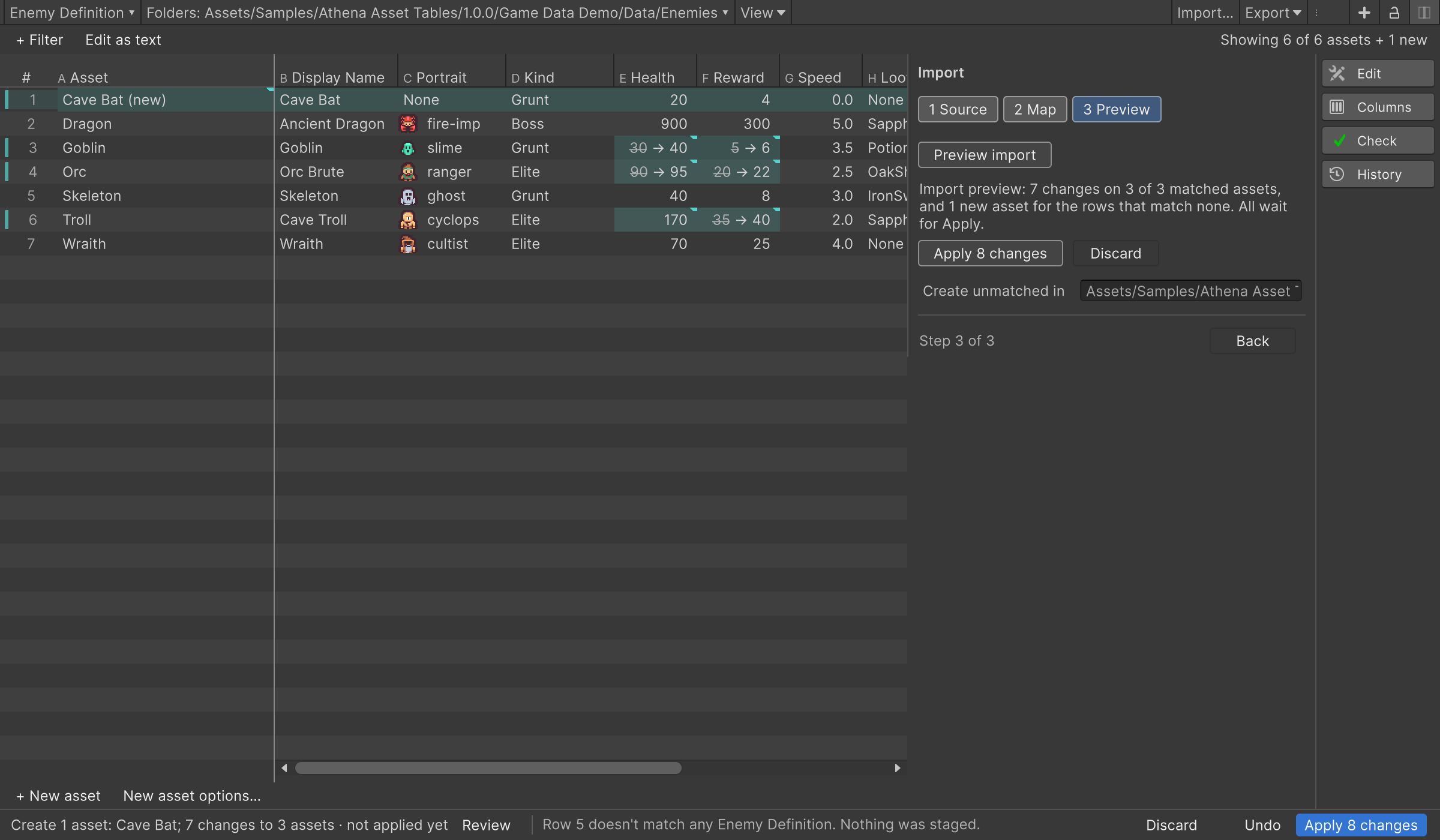
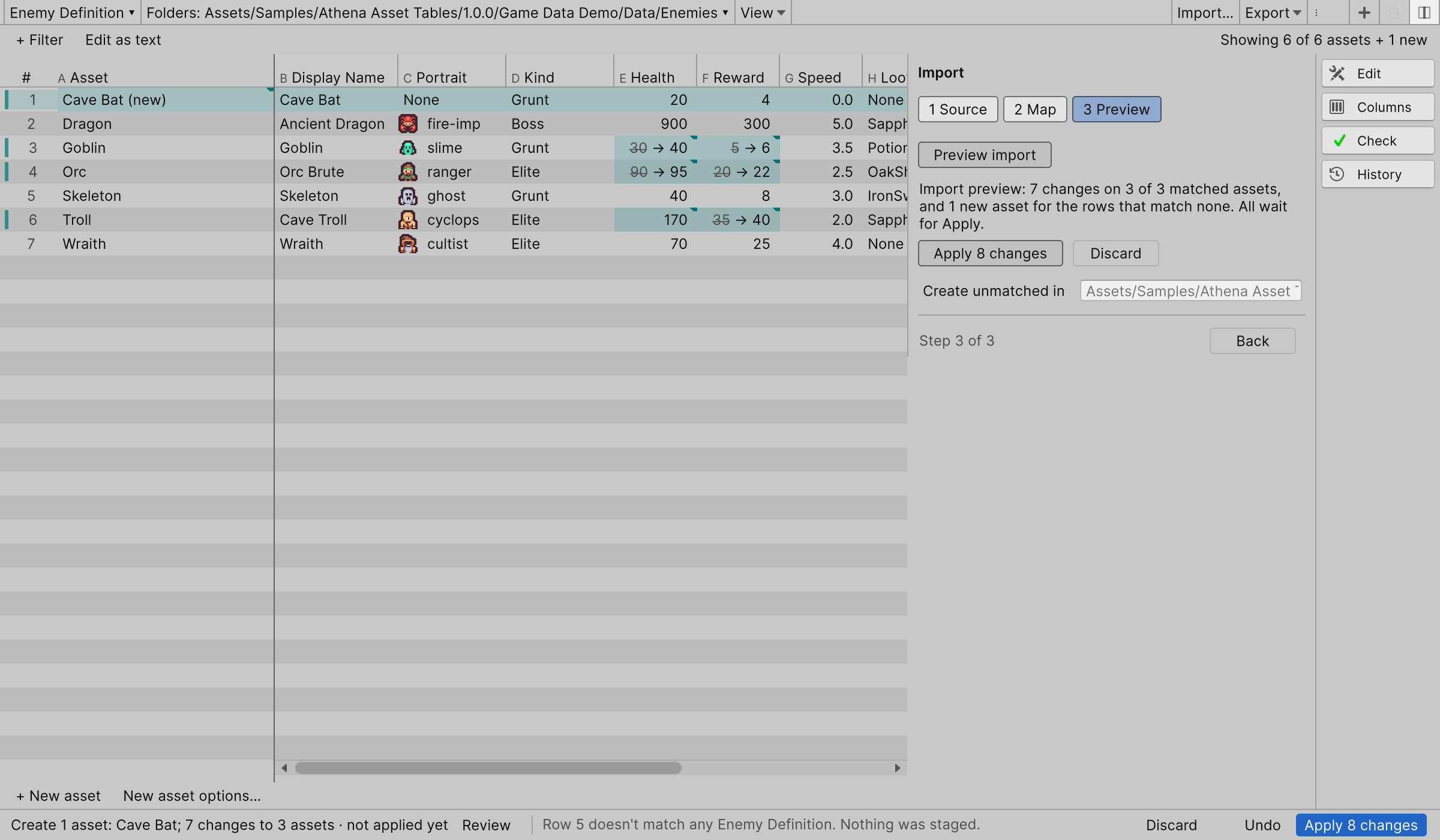
Every change the rows would make is staged in the table, the old value struck through beside the new one, exactly as if you had typed it. Rows that would change nothing are left alone. Check the cells, then click the step’s Apply button, which counts what it will write, or Discard to drop the lot. One Undo takes back an applied import, however many assets it changed. Arriving at this step previews by itself; Preview import runs it again after you change the mapping.
Nothing is written when the preview finds a problem. It lists each one with its row and column: a value that is not a number, a key that matches no asset, a field the asset does not have. Fix the file or the mapping and preview again.
Rows that match no asset
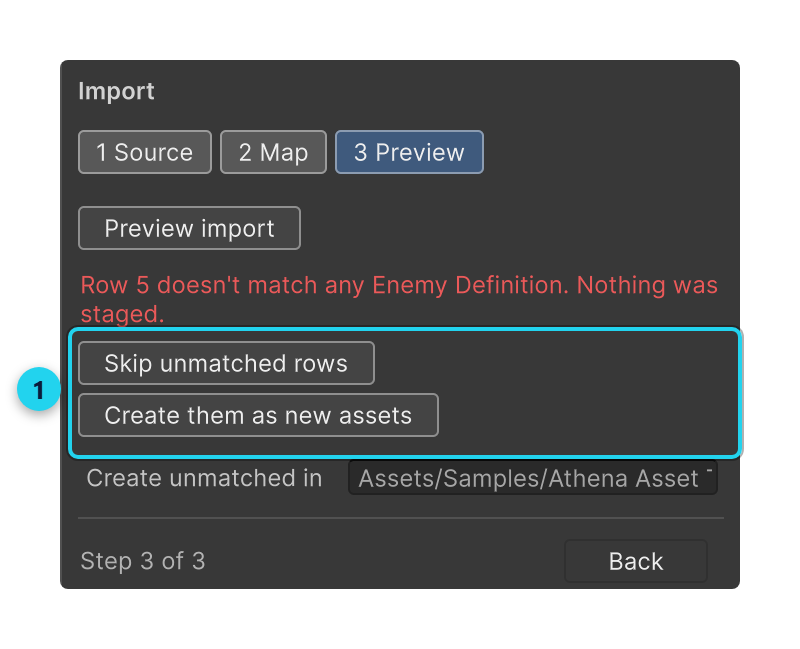
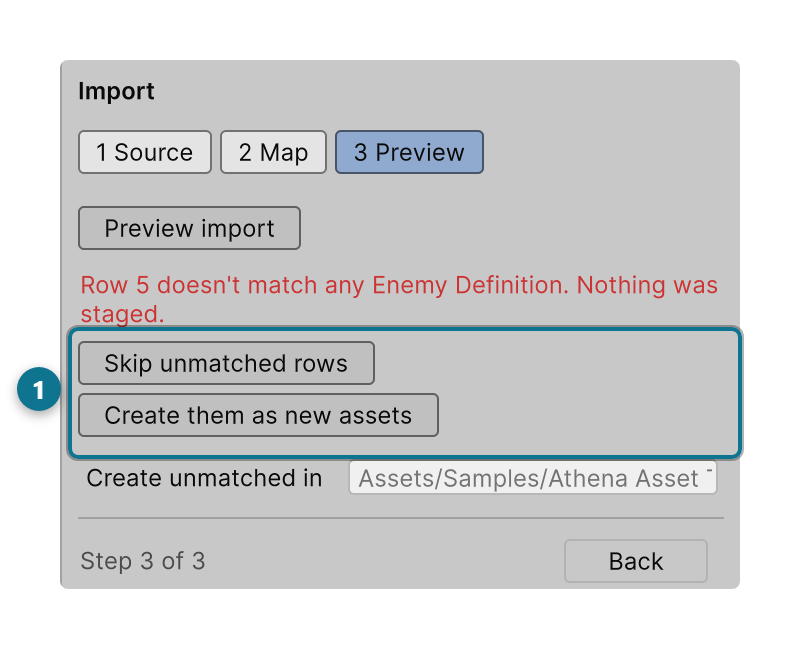
When When no match is Stop and report them, a row whose key matches nothing stops the import, so a typo never quietly drops a row. The preview then offers Skip unmatched rows and Create them as new assets, which set When no match for you and preview again.
With Create new assets, each unmatched row is staged as a new row of the table, named from its key and filled from its cells, beside the changes to the assets that did match. They are created in the first of the table’s folders, or in Create unmatched in when you set it. One Apply writes the new assets and the changes together, and History can revert all of it. Creating assets needs a key column: a new asset gets a new GUID that no row could know.
Run the same import again
A spreadsheet that arrives every week does not need setting up every week. Save import as… saves the
type it fills, where its rows come from and its mapping as a .dataimport.json file; Saved import lists
them and runs one. Running a saved import fills the steps and stops at the preview, so it still writes
nothing until you apply.
A saved import remembers a Google Sheets link or a file. Keep the file inside your project, so the saved import works for everyone who has the project.